SPX Direction Trend and Reversal Detector
Contact customer support at support@spxdirection.com to get access to all Tradingview indicators.
TradingView link: https://www.tradingview.com/script/LRoyIYwW-Strategy-SPX-Direction-Trend-and-Reversal-Detector
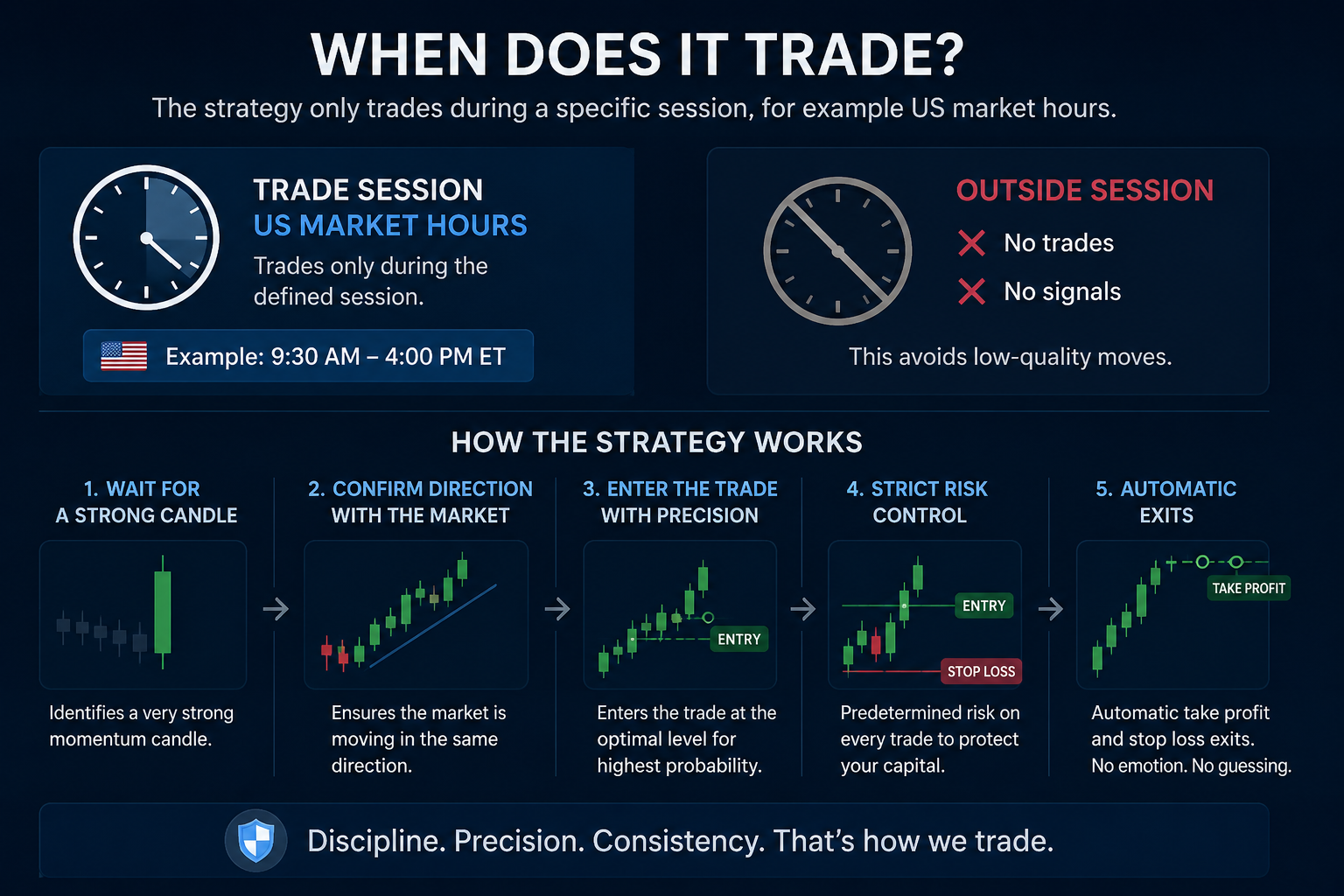
When does it trade?
The strategy only trades during a specific session, for example US market hours.
If the market is outside this time:
❌ No trades
❌ No signals
This avoids low-quality moves.
This strategy waits for a very strong candle, makes sure the market is going in the same direction, then enters a trade with strict risk control and automatic exits.
What candle is it looking for?
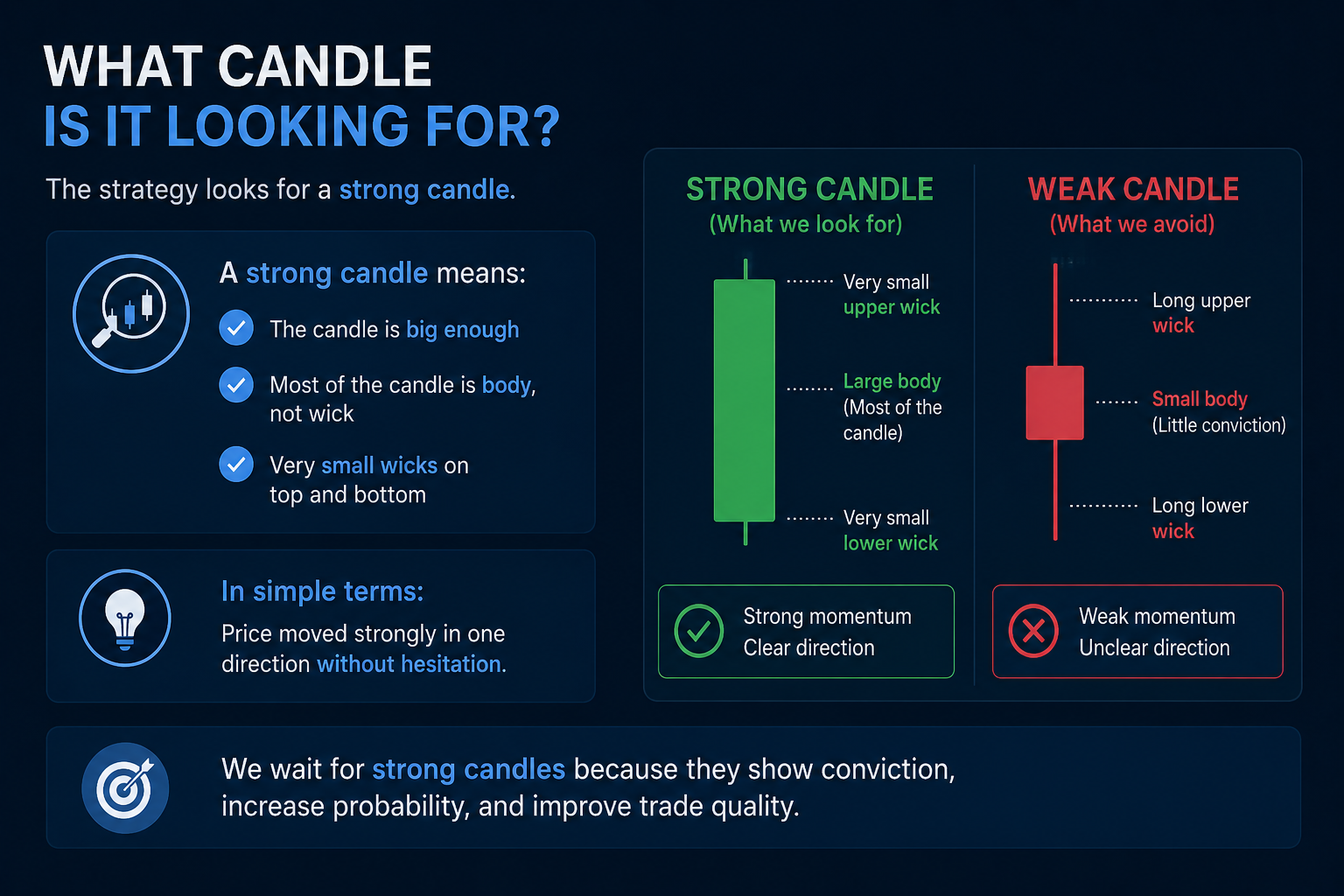
The strategy looks for a strong candle.
A strong candle means:
- The candle is big enough
- Most of the candle is body, not wick
- Very small wicks on top and bottom
In simple terms:
Price moved strongly in one direction without hesitation.
Direction rules (trend check)
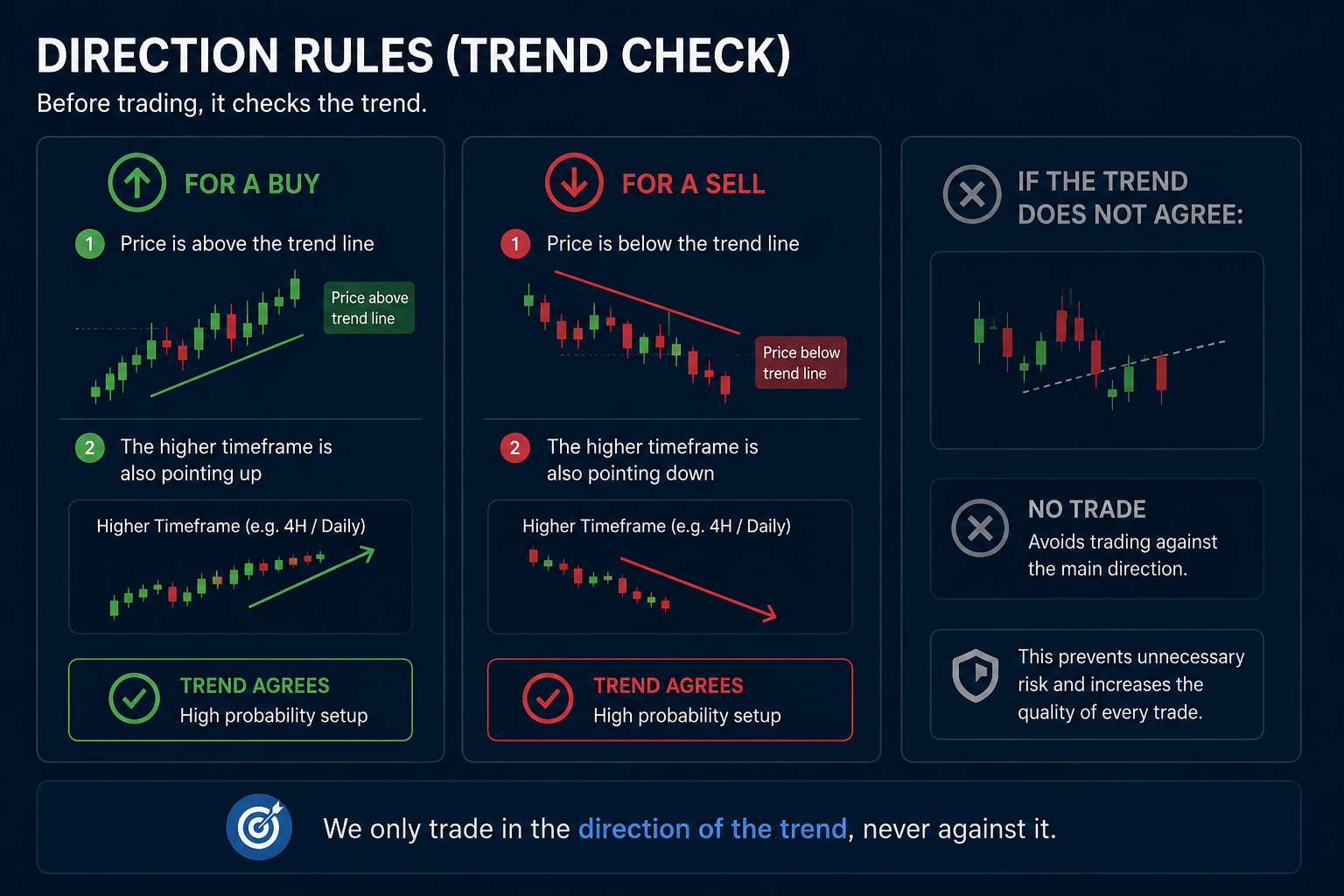
Before trading, it checks the trend.
For a BUY:
- Price is above the trend line
- The higher timeframe is also pointing up
For a SELL:
- Price is below the trend line
- The higher timeframe is also pointing down
If the trend does not agree:
❌ No trade
This prevents trading against the main direction.
Volume check (confirmation)
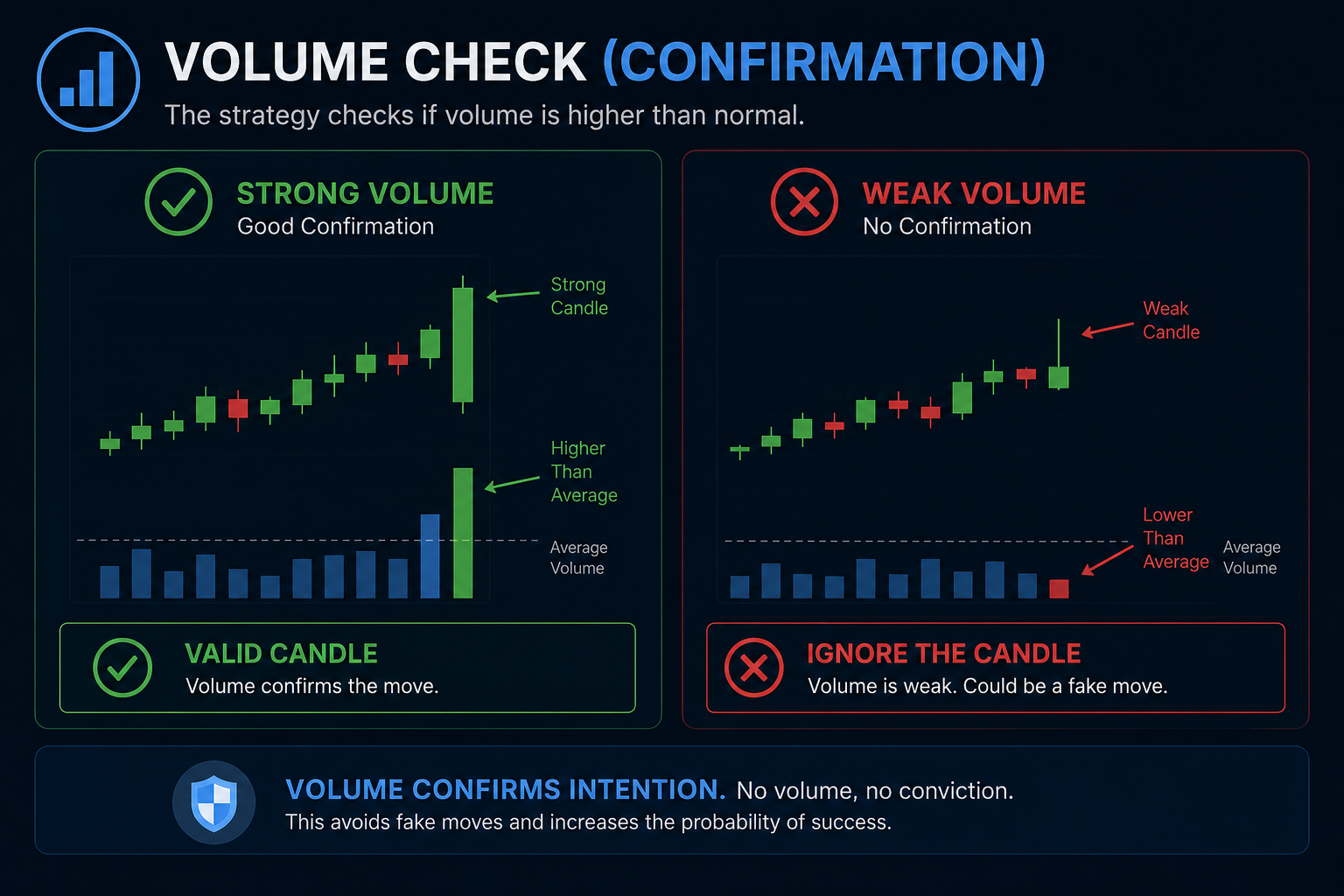
The strategy checks if volume is higher than normal.
If volume is weak:
❌ Ignore the candle
This avoids fake moves.
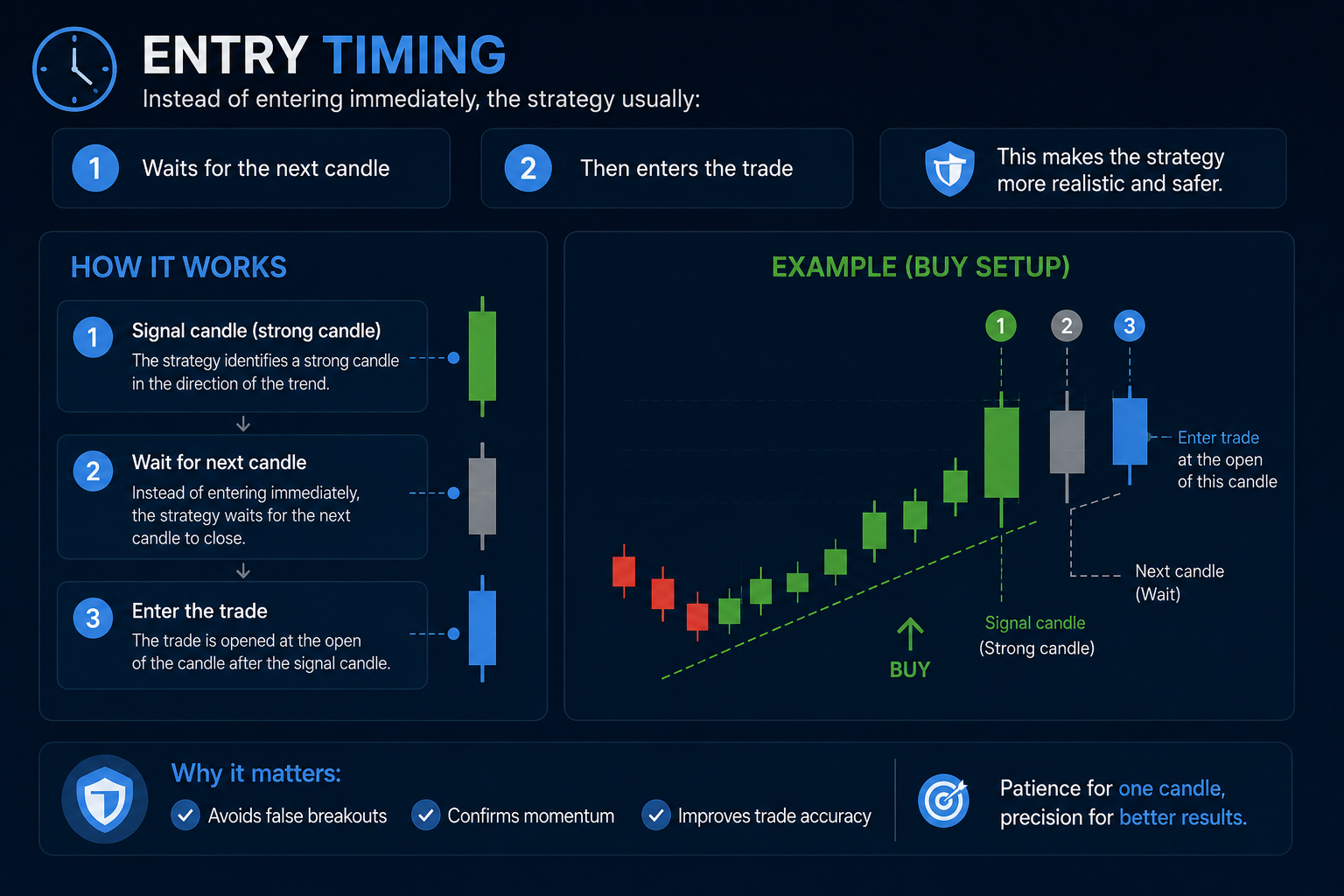
Entry timing
Instead of entering immediately, the strategy usually:
- Waits for the next candle
- Then enters the trade
This makes the strategy more realistic and safer.
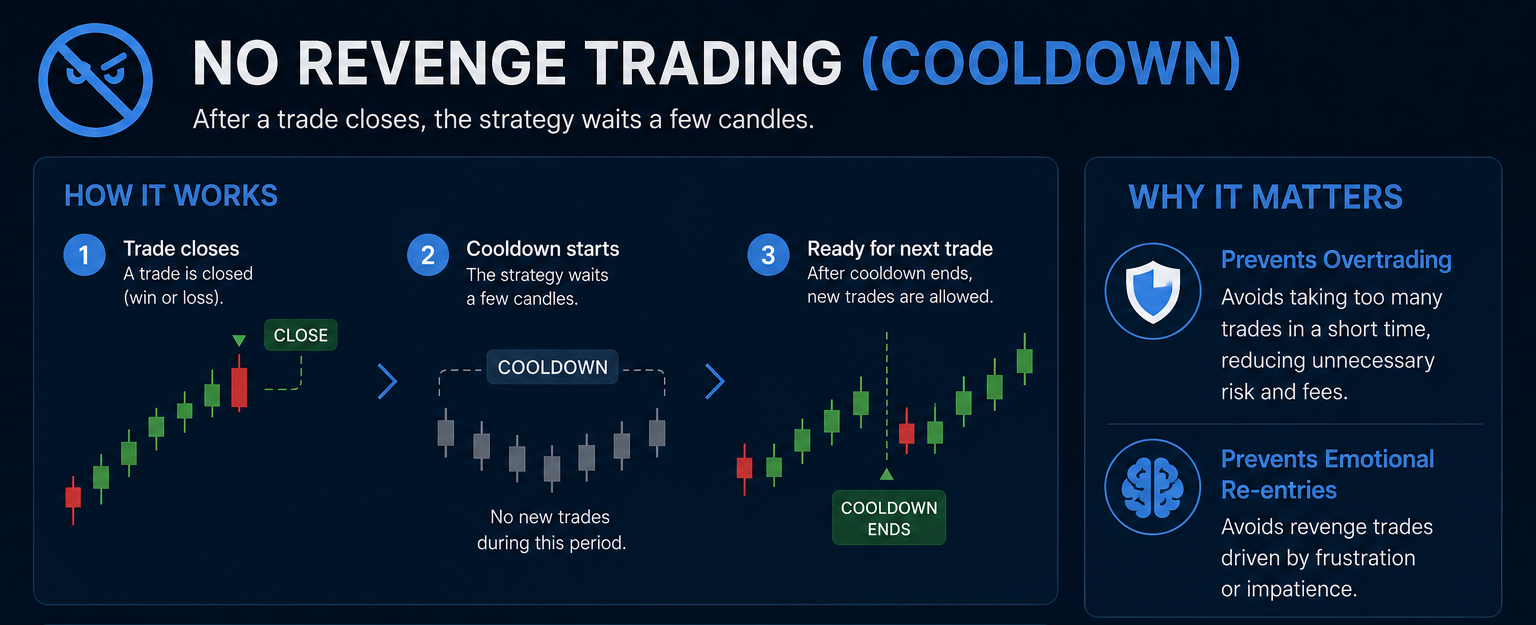
No revenge trading (cooldown)
After a trade closes:
- The strategy waits a few candles
- No new trades during this cooldown
This prevents:
- Overtrading
- Emotional re-entries
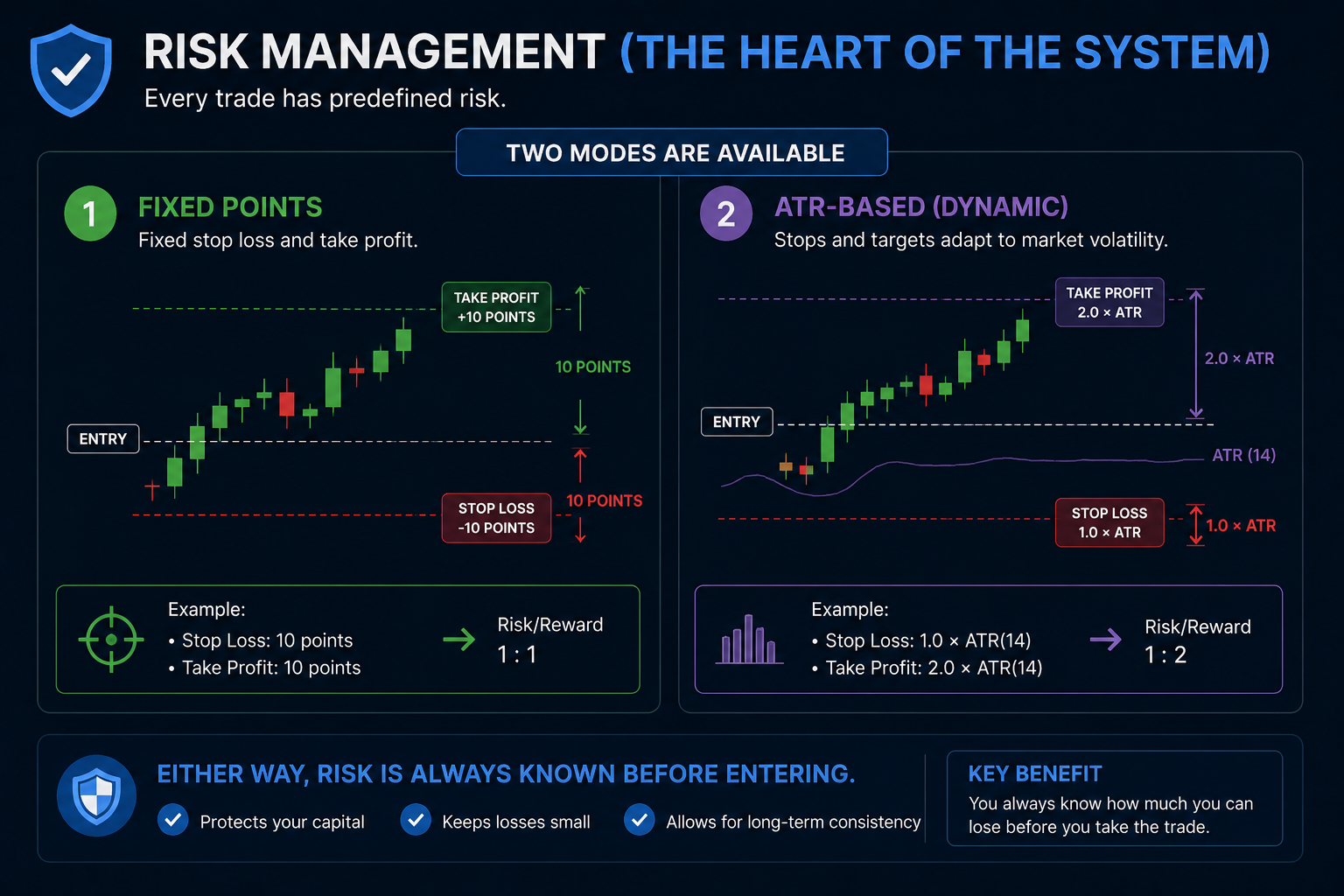
Risk management (the heart of the system)
Every trade has predefined risk.
Two modes are available.
Fixed points:
- Fixed stop loss, for example 10 points
- Fixed take profit, for example 10 points
ATR-based (dynamic):
- Stop is based on market volatility
- Take profit is a multiple of the stop
Either way, risk is always known before entering.
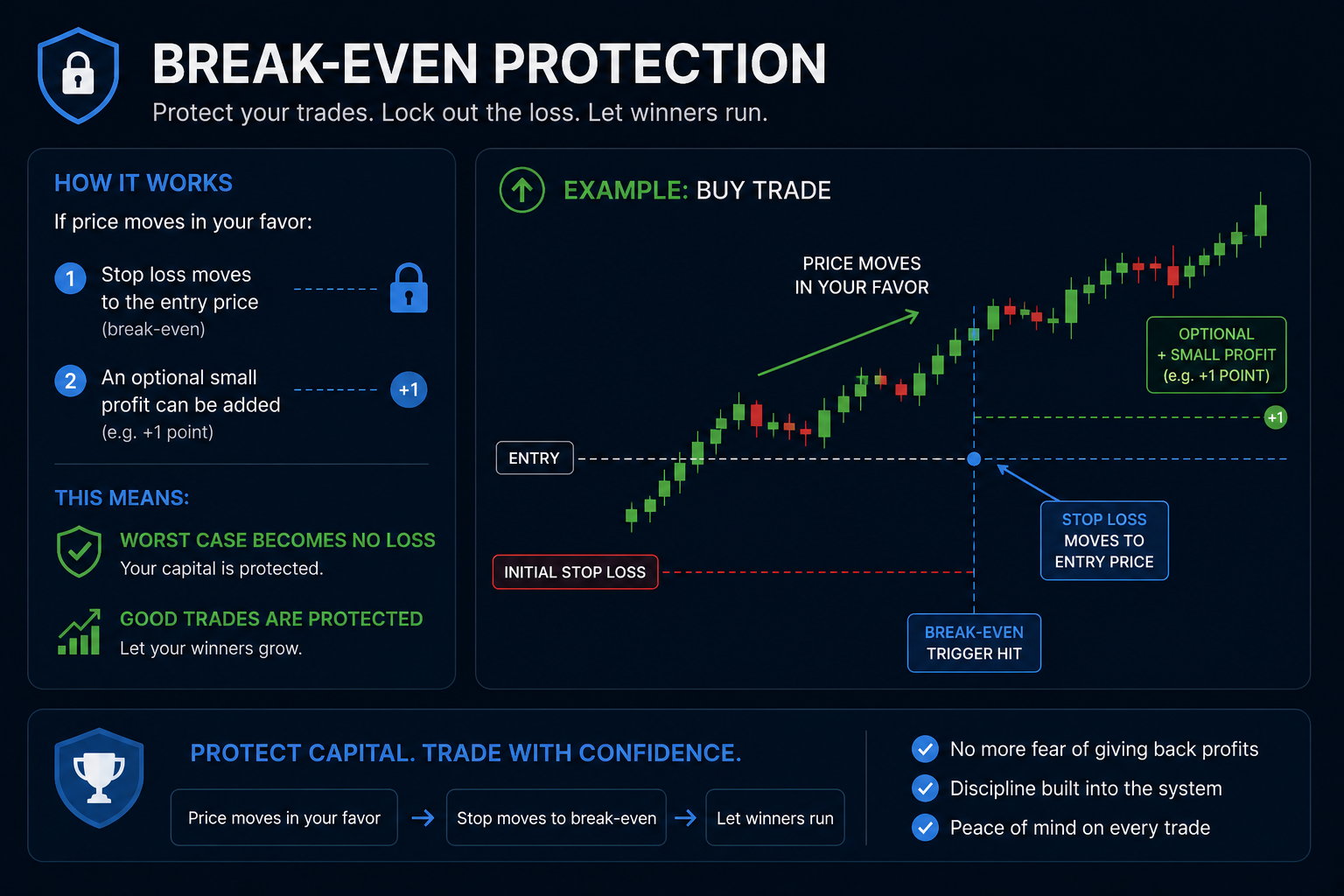
Break-even protection
If price moves in your favor:
- Stop loss moves to the entry price
- An optional small profit can be added
This means:
- Worst case becomes no loss
- Good trades are protected
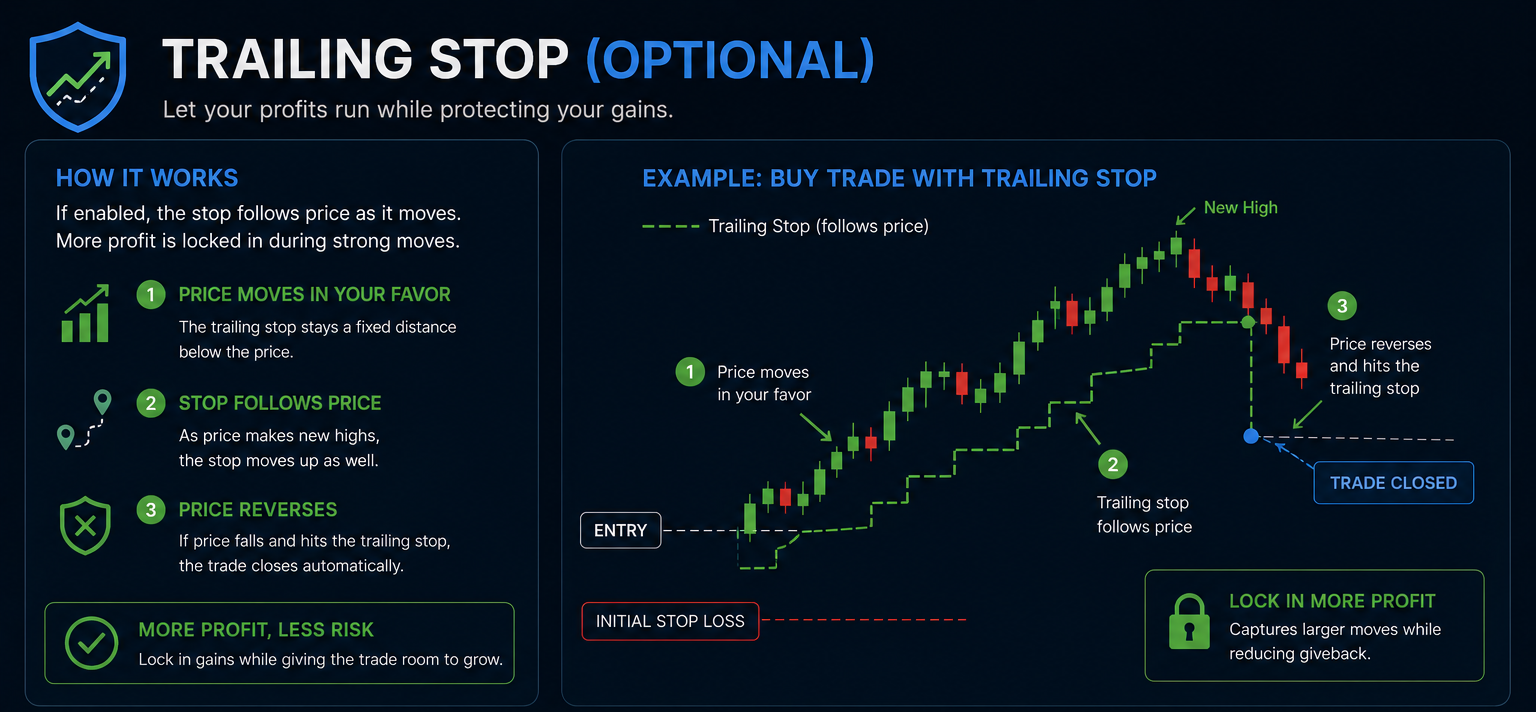
Trailing stop (optional)
If enabled:
- The stop follows price as it moves
- More profit is locked in during strong moves
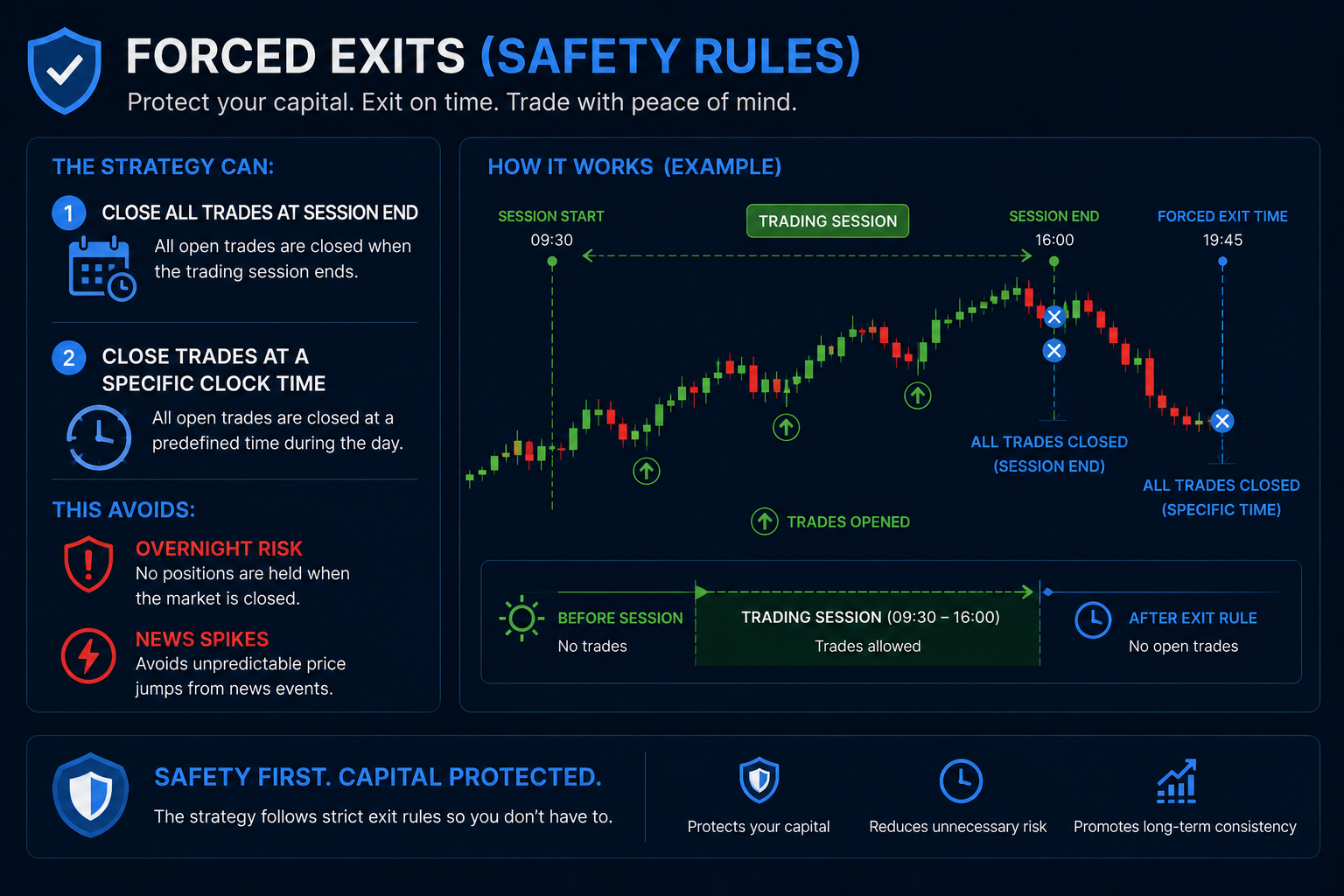
Forced exits (safety rules)
The strategy can:
- Close all trades at session end
- Close trades at a specific clock time
This avoids:
- Overnight risk
- News spikes
Alerts (communication)
The strategy sends alerts when:
- A trade opens
- Take profit is hit
- Stop loss is hit
Alerts include:
- Direction (BUY or SELL)
- Entry price
- Take profit and stop loss
- Timeframe
What the visuals mean
On the chart you will see:
- EMA line showing the trend direction
- BULL or BEAR labels marking strong candles
- Background color showing when the trading session is active
These visuals help you understand the strategy logic in real time.
How to Add an Alert Using the Ignition Strong Candle ES1! Strategy on TradingView
Setting up alerts correctly ensures you never miss a valid trading signal. This guide walks through the exact process of adding an alert using the SPX Direction Trend and Reversal Detector! Strategy, following a clean and structured workflow.
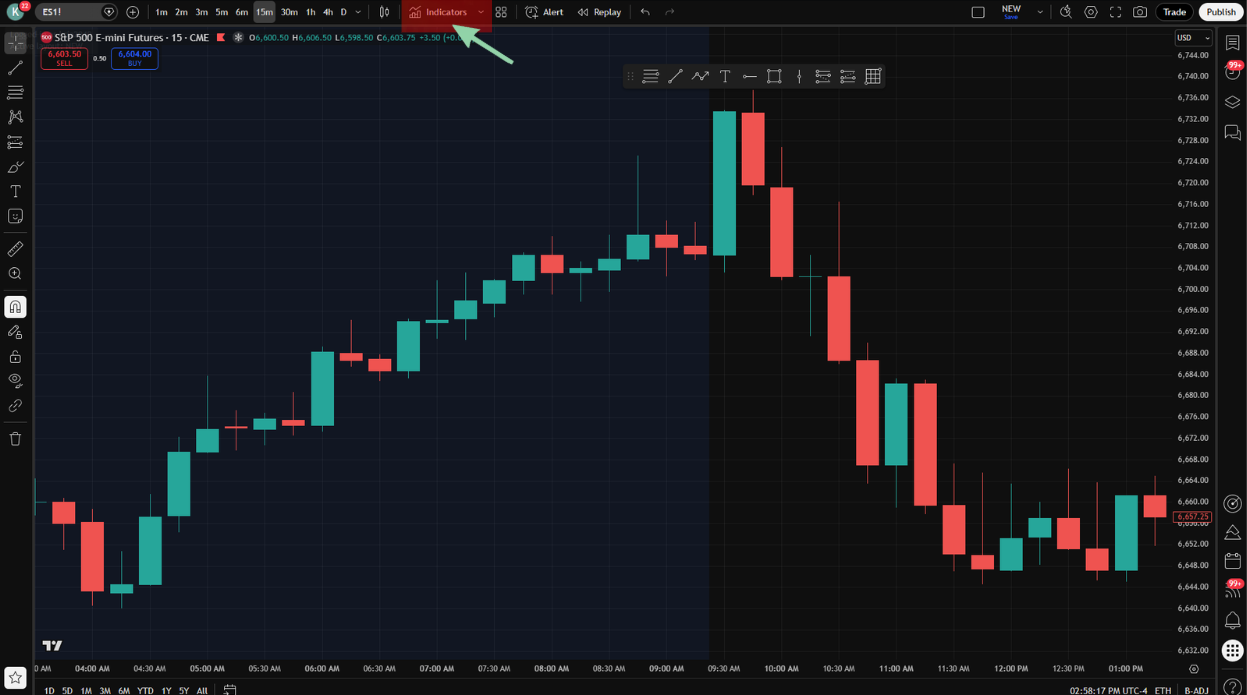
Step 1: Open Indicators
From the top menu of the chart, click Indicators.
Step 2: Navigate to Invite-only
Inside the Indicators panel, select Invite-only from the left-hand menu.
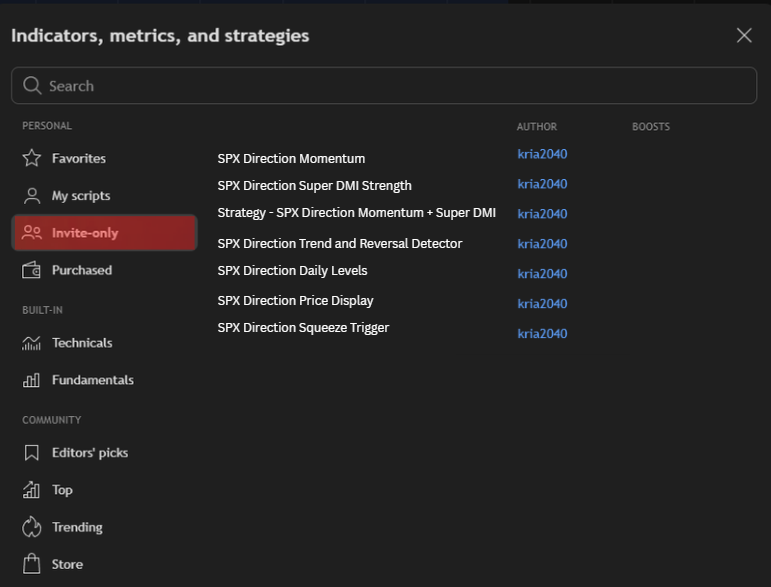
Step 3: Locate the Strategy
Find Ignition Strategy - SPX Direction Trend and Reversal Detector in the list and add it to your chart.

Step 4: Open the Strategy Menu
At the top of the chart, beside SPX Direction Trend and Reversal Detector, click the three dots (⋯) to open the options menu.
Step 5: Add the Alert
From the menu, click Add alert on SPX Direction Trend and Reversal Detector.
Step 6: Create the Alert
In the alert window, click Create.
Once created, the alert will automatically notify you whenever the strategy conditions are met on the selected timeframe.
This completes the setup.