Strategy - SPX Direction Momentum + Super DMI
Contact customer support at support@spxdirection.com to get access to all Tradingview indicators.
TradingView link: https://www.tradingview.com/script/vVUOhDX6-Strategy-SPX-Direction-Momentum-Super-DMI/
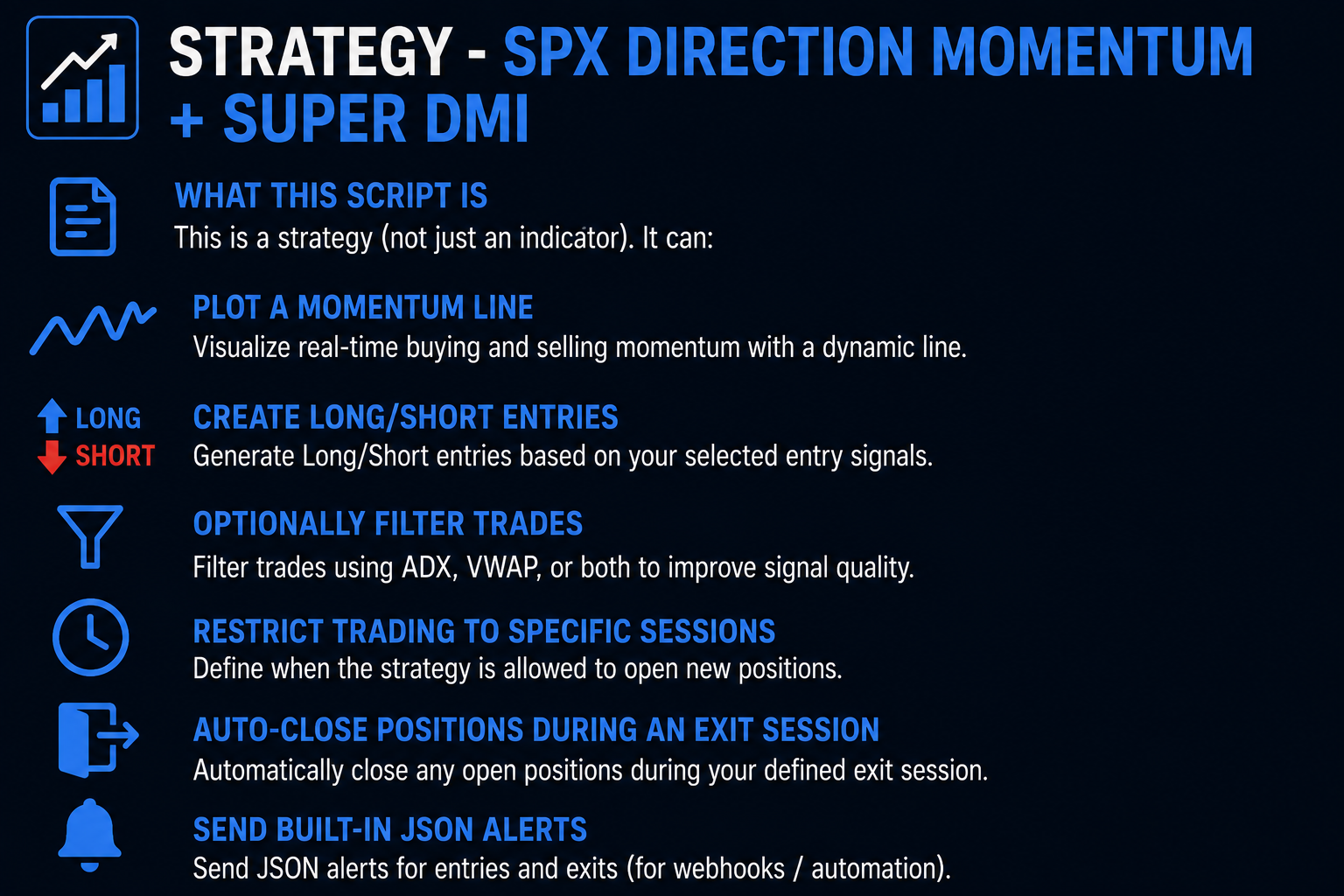
What this script is
This is a strategy (not just an indicator). It can:
- Plot a momentum line
- Create Long/Short entries based on your selected entry signals
- Optionally filter trades using ADX and/or VWAP
- Restrict trading to specific sessions
- Auto-close positions during an exit session
- Send built-in JSON alerts for entries and exits (for webhooks / automation)
1) Add the script to your chart
Open TradingView and open any chart.
Open Pine Editor (bottom panel).
Paste the full script.
Click Save.
Click Add to chart.
Tip: Since it’s a strategy, you’ll see trades in the Strategy Tester tab.
2) Understand the two Resolution settings (very important)
This strategy calculates two different things and each can have its own timeframe:
A) Momentum Resolution (Settings → Resolution)
This controls the timeframe used to calculate momentum (TSI).
- You can view a 1H chart, but run momentum on 5m.
B) ADX Resolution (ADX → Resolution)
This controls the timeframe used to calculate ADX/+DI/-DI.
- You can view a 1H chart, but run ADX on 15m.
3) Pick your Entry Signals (Entries group)
The strategy only takes trades if you activate one or more entry toggles.
Buy-side options
- Buyer Momentum (basic momentum flip up)
- Strong Buyer Momentum Green / Bright Green (stronger momentum shifts)
- Single Strength Arrow / Double Strength Arrow (ADX arrow conditions)
- Double Buy (confirmed buy condition)
Sell-side options
- Seller Momentum (basic momentum flip down)
- Strong Seller Momentum Purple / Red (stronger downside shifts)
- Single Weakness Arrow / Double Weakness Arrow (ADX arrow conditions)
- Double Sell (confirmed sell condition)
What “Double Buy / Double Sell” means
A “double” condition happens when:
- A buy (or sell) condition triggers now, and it also triggered recently (within the last 1–2 bars).
This usually reduces noise versus single flips.
4) Turn filters ON only if you want them
A) ADX Filter (optional)
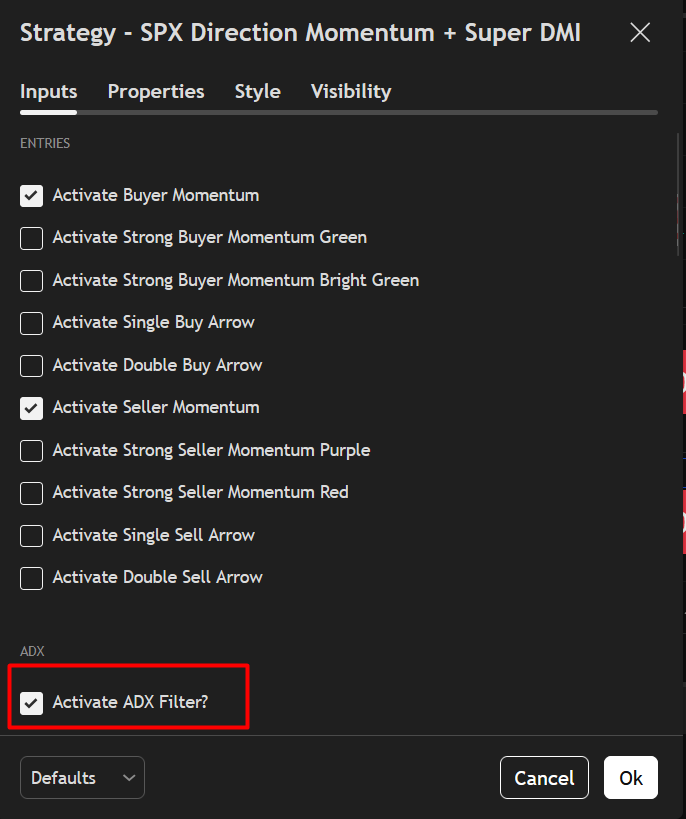
Turn on Activate ADX Filter
Set ADX Filter Threshold (10–50)
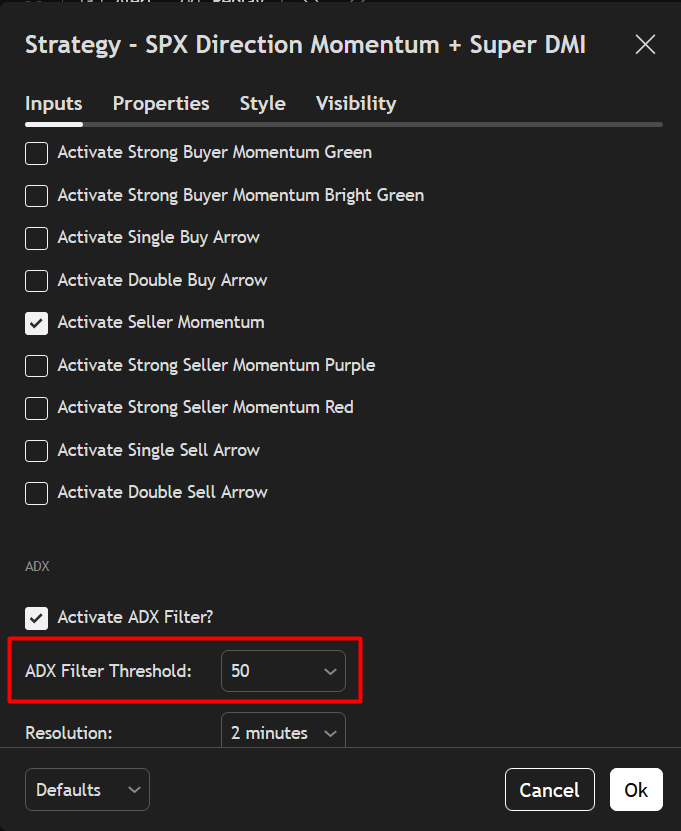
If ON, the strategy will only trade when:
- ADX >= threshold
B) VWAP Filter (optional)
Turn on Activate VWAP Filter
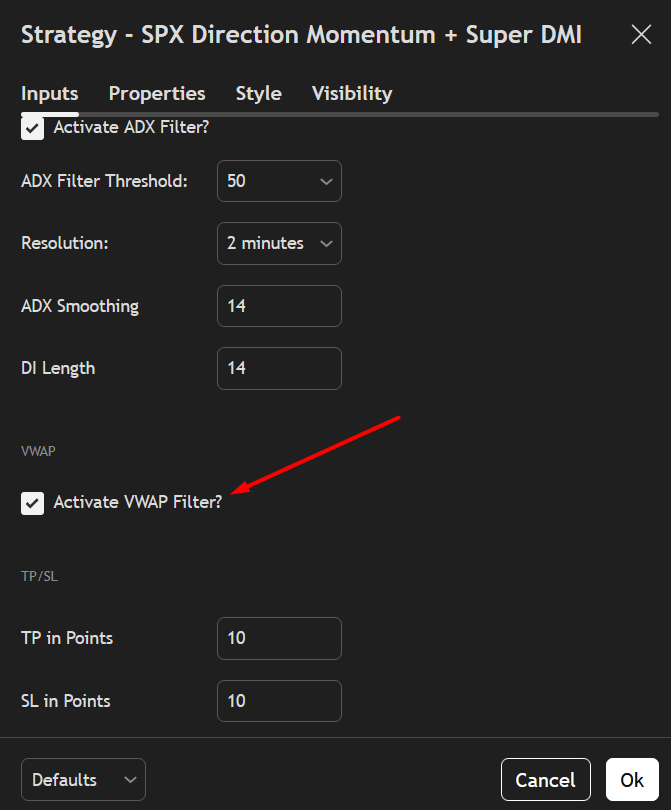
If ON:
- Longs only when close > vwap
- Shorts only when close < vwap
5) Set your TP/SL (TP/SL group)
TP in Points
SL in Points
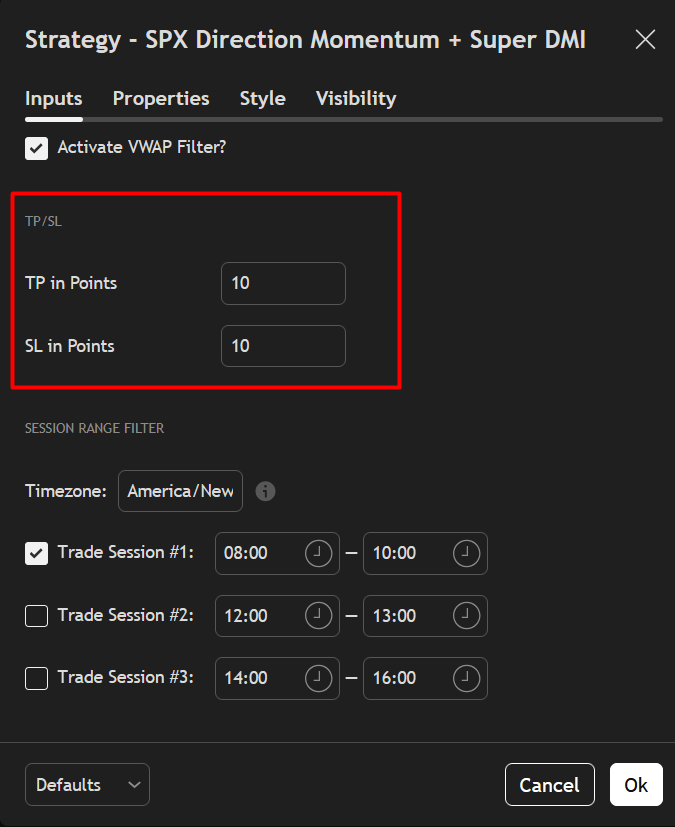
Important note:
In this version, exits are placed using the TP value for both TP and SL distance. So TP controls the size of both the take profit and stop loss.
Example (TP = 10):
- Long TP = entry + 10
- Long SL = entry − 10
6) Session Range Filter (when the strategy is allowed to trade)
In Session Range Filter, you can set:
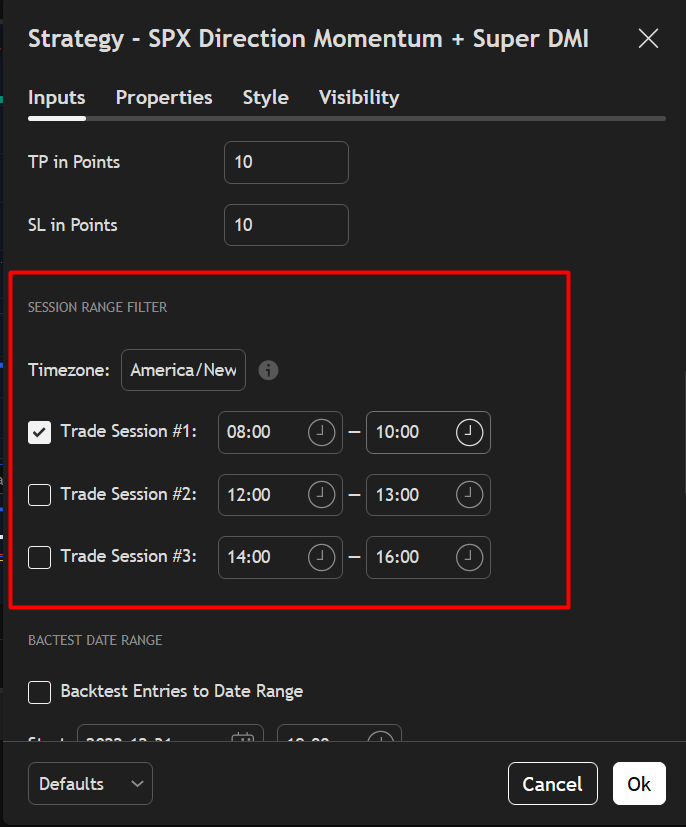
- Timezone
- Session #1, #2, #3 (enable any)
How it behaves:
- Entries only happen inside enabled session(s)
- If the exit session hits, the strategy closes open trades and blocks new entries until a new active session resets it
7) Backtest Date Range (optional)
If you want to limit backtesting:
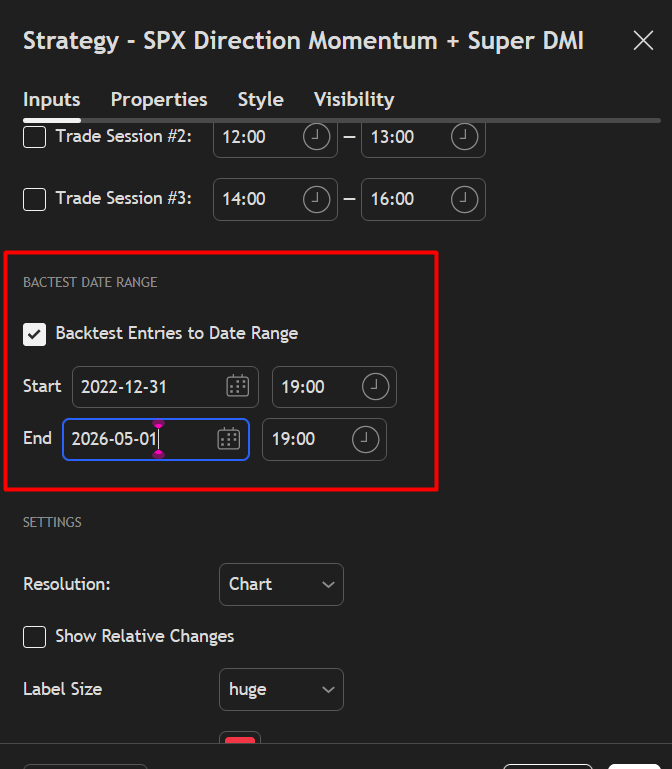
- Enable Backtest Entries to Date Range
- Set Start and End dates
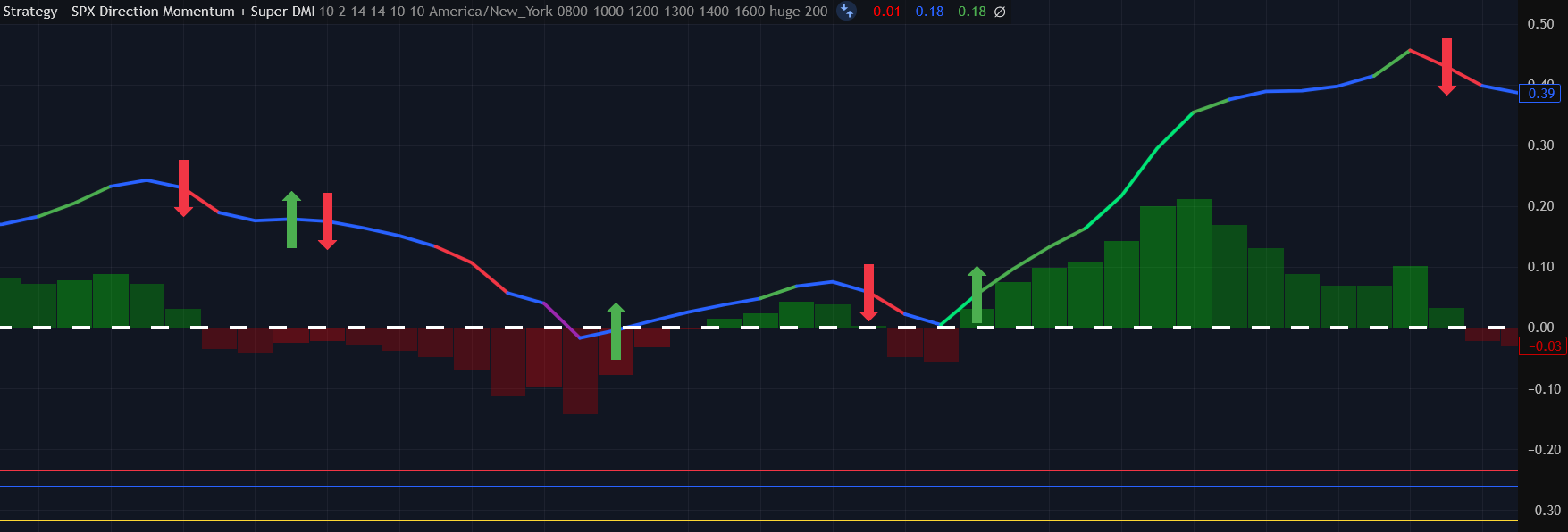
8) What you’ll see on the chart
Momentum visuals
- A thick momentum line (TSI)
- Up/down arrows when momentum flips
Strategy signals on price chart
- Green background when a long triggers
- Red background when a short triggers
9) How to create alerts (webhook-ready)
This strategy uses alert() calls that send JSON strings for:
- buy
- sell
- exit
To set it up correctly:
- Click Alerts
- Click Create Alert
- Condition: select the strategy
- Choose Any alert() function call
- Add your notification method or webhook URL
- Click Create